We ❤️ ChatGPT.
Connect ChatGPT to your Cloxbi schedule.
Add Cloxbi as a custom MCP connector in ChatGPT's Developer Mode and run your whole schedule in plain English — who's covering Friday, who's off, who's near overtime. One hosted endpoint, OAuth sign-in, no code.
Hosted MCP on every plan · 14-day free trial · No credit card to start.
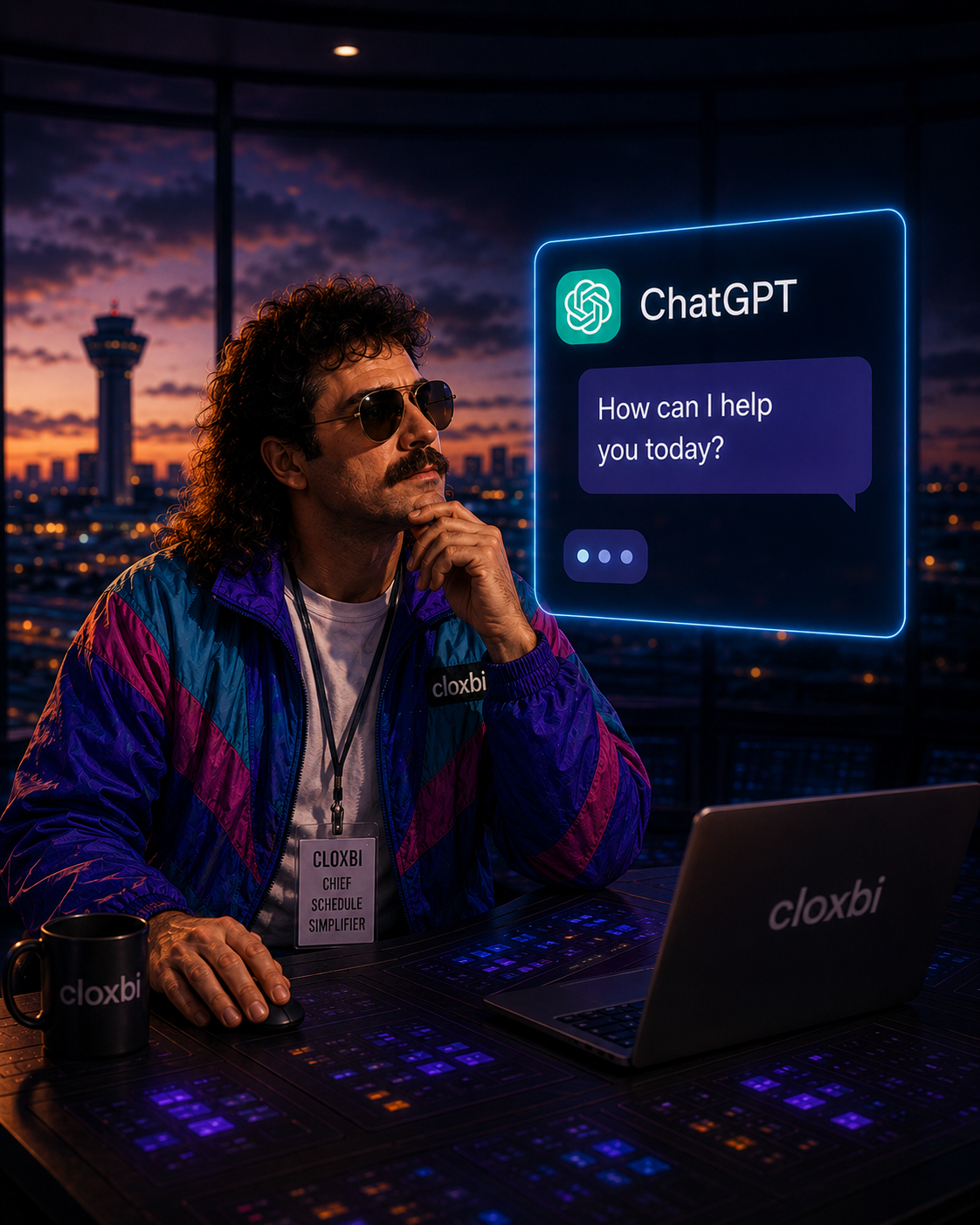
Run your schedule from ChatGPT.
Ask in plain English
Who is on Saturday? Move Jordan off Friday. ChatGPT reads and writes your real Cloxbi schedule.
Find coverage fast
Ask who is available and not near overtime — it checks live availability, PTO, and rules first.
Build and clone weeks
Copy last week and swap Mike for Olivia on Sunday. ChatGPT drafts it; you approve it.
Right inside ChatGPT
No new app to learn. It lives in the ChatGPT you already have open all day.
Plain English in. Real schedule out.
How to connect ChatGPT to Cloxbi
Two minutes, three steps, zero code. Here's the whole thing.
- 1
Open AI integration in Cloxbi
Log in at app.cloxbi.com/manager/mcp as a manager, scheduler, or location admin. For OAuth you just need the MCP URL below — no API key.
- 2
Turn on Developer Mode in ChatGPT
Go to Settings, then Apps & Connectors, then Advanced settings, and switch on Developer Mode (Plus, Pro, and team plans).
- 3
Add a custom connector
Name it Cloxbi, set the URL to
https://app.cloxbi.com/mcp, and choose OAuth — not Bearer token. - 4
Sign in and start asking
Open a new chat, enable the Cloxbi connector, sign in with your Cloxbi account, and confirm the tools appear before you ask.
ChatGPT + Cloxbi, answered.
How do I connect ChatGPT to Cloxbi?
In ChatGPT, turn on Developer Mode under Settings → Apps & Connectors → Advanced settings, then add a custom connector pointed at https://app.cloxbi.com/mcp and choose OAuth. Sign in with your Cloxbi manager account — no API key needed.
Do I need an API key, Python, or a local script?
No. ChatGPT connects to the hosted Cloxbi endpoint over OAuth — you sign in with your Cloxbi account, with nothing to install, clone, or maintain. (A Bearer-token key exists only for legacy/script use.)
Which plans support this?
Hosted MCP is included on every Cloxbi plan. On the ChatGPT side, custom connectors run in Developer Mode, available on Plus, Pro, and team plans.
Can ChatGPT change my schedule or only read it?
Both, within your permissions. OAuth ties the connector to your Cloxbi staff account, so ChatGPT only gets the scheduling tools your role (manager, scheduler, or location admin) allows.
Is my schedule data secure?
OAuth signs you in with your Cloxbi staff account over HTTPS — there's no key to copy or leak, access mirrors your role, and employee-only logins can't authorize MCP.
More ways to connect
Same hosted endpoint, same key — pick your client.
Ready to connect ChatGPT?
Grab your API key and your AI will be talking to your schedule in two minutes.
Get your API key